
Remove one distraction

Remove an object from your photo here.

Upload the photo below, keep the Remove task selected, and describe the object, its location, and anything nearby that must stay unchanged. You can compare the result with the source, narrow the instruction, retry, download, or keep editing without leaving this page.

Upload a photo ↓
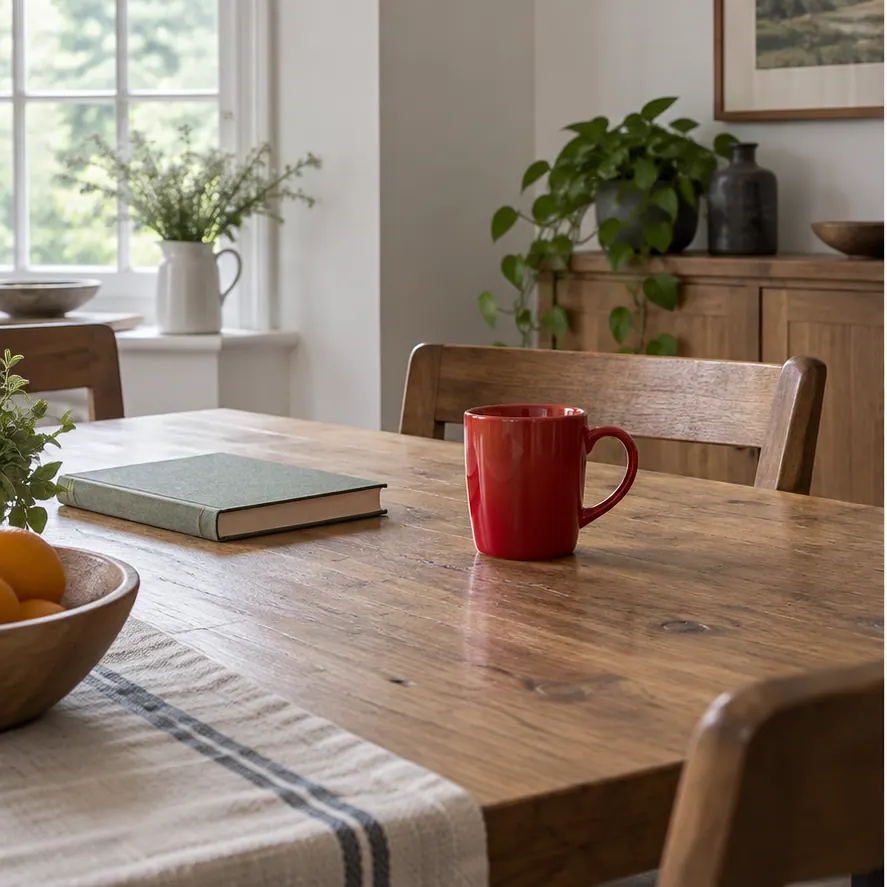
Source photo containing an object to remove

Source

Photo Editor result after removing the object

Result

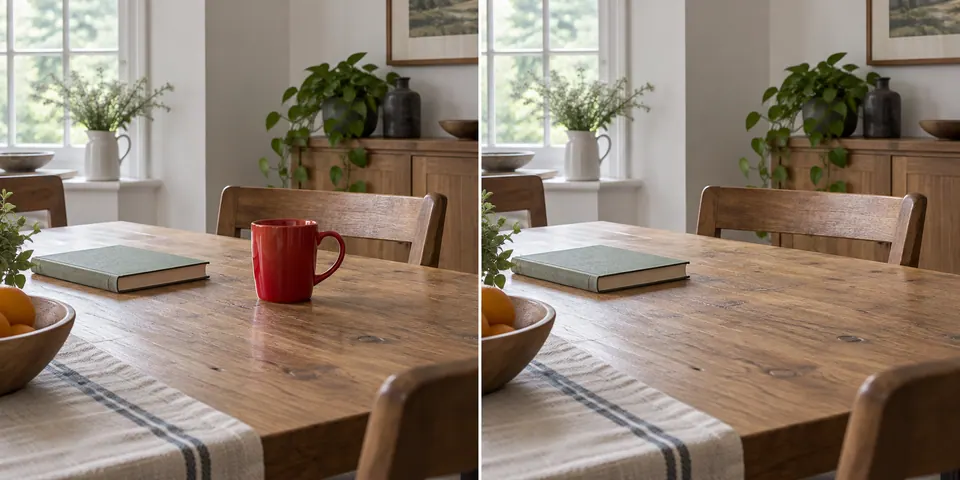
A source-to-result example from the current Photo Editor. Always inspect the filled area for repeated texture, bent lines, or changes to nearby objects.

Your canvas

Photo preview

Before / After

Room with a red cup before editingBefore
The same room after removing the red cupAfter
Example edit

One photo. One clear change.

WRITE AN INSTRUCTION YOU CAN JUDGE

  1. 01

    Name one target

    “The red cup” is safer than “clean up the table.” A focused target makes success and failure easier to inspect.

  2. 02

    Locate it

    Use plain spatial language when similar objects appear more than once: “the cup on the right side of the table.”

  3. 03

    Protect context

    Name nearby people, text, products, geometry, reflections, or lighting that must not change.

Good targets are specific

  • • A cup, sign, cable, passerby, or small background object.
  • • One person whose removal leaves enough visible background to reconstruct.
  • • One item on a product table or in an interior photograph.
  • • A small visual distraction when a broader retouch is not the goal.

Some removals need more review

Large targets require the editor to invent more hidden scene. Faces, hands, text, reflections, shadows, and repeating geometry can change nearby. The tool does not provide a pixel mask or promise pixel-identical preservation.

Refine from the best version

If the fill changes a nearby subject, narrow the object description and strengthen “keep unchanged.” Use Adjust and try again to refine the instruction, retry after a failure, keep editing from a successful result, or return to the original and start over. Signed-in results can also be reopened from Creations.

Questions

Before you remove it

Can I remove the object on this page?

Yes. Upload your image in the workspace above, leave Remove selected, write the instruction, and run the edit here.

Do I need to highlight the object?

No pixel mask is available in this workflow. Describe the target and its location in words. For repeated objects, include nearby landmarks that distinguish the one you mean.

Will everything else stay pixel-identical?

Not necessarily. The editor generates a new result and can affect nearby texture, geometry, reflections, text, faces, or hands. Compare the full image and iterate with a narrower request.

What can I do after a successful edit?

Refine the instruction, continue editing from the result, transform it, download it, or keep an account-owned result in Creations.