
Keep the photo. Remove the problem.
Clean up the image you already want to keep.
Upload a photo, brush over what you want removed, and keep the rest of the image intact. Start with a small distraction, then compare the result before you download.
Clean up your photo ↓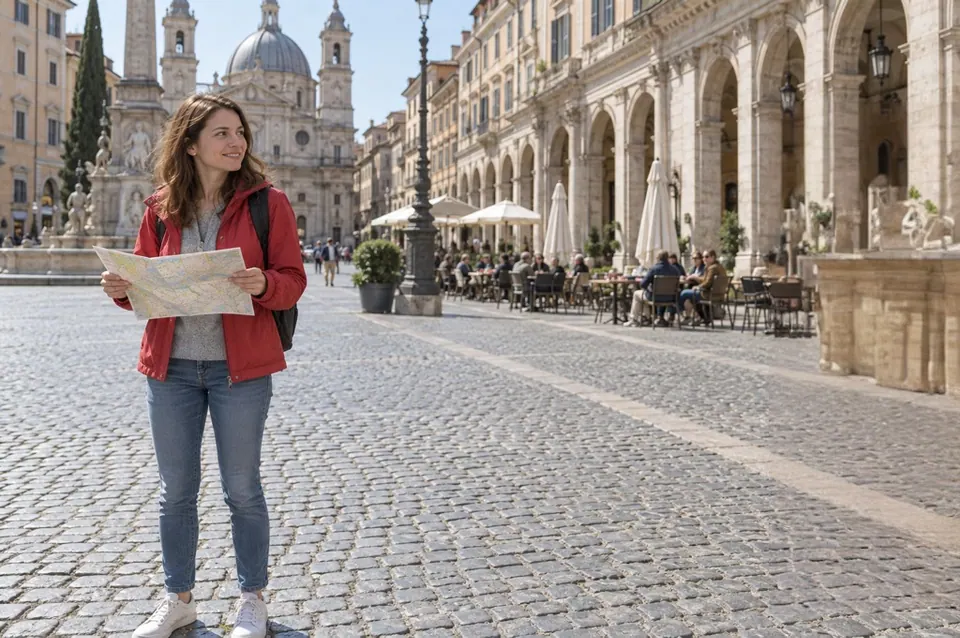
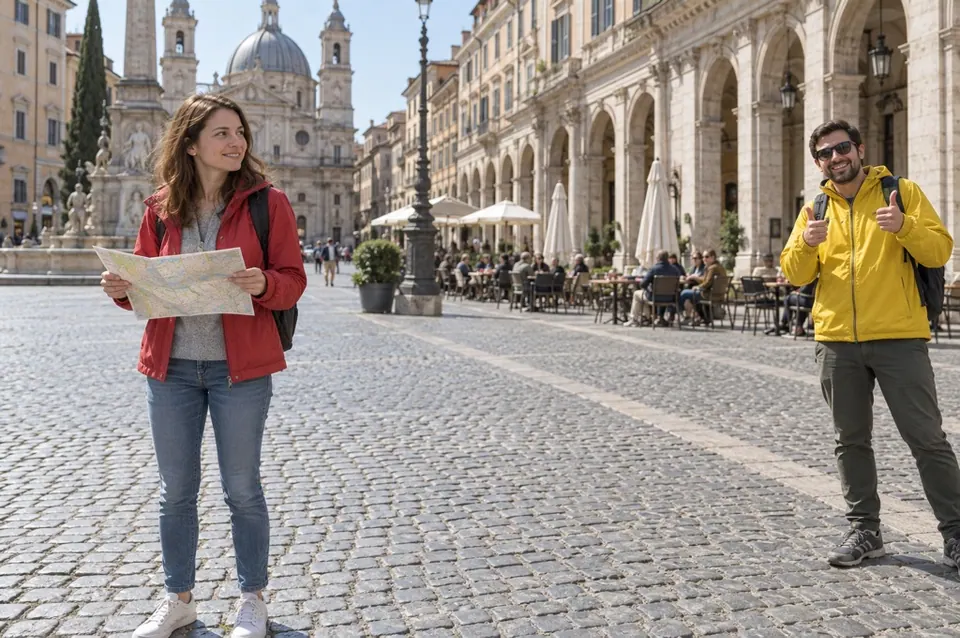 Before
Local photo cleanup
Brush over what should disappear
Remove an unwanted object or small distraction here. Use a brush for an irregular shape or a rectangle for a simple area, leaving the details you want to keep outside the selection.
Your photo stays in this browser until you run an edit or continue in another tool. Uploading does not publish it.
Need something more specific?
Use a specialist tool when you need person detection, text controls, or a different kind of result. Your current image goes with you; after an edit, these choices use the cleaned-up result.
Remove something
Keep the scene, remove an unwanted element.
Fix a small issue
Make a limited correction rather than restyling the photo.
Portrait touch-up uses Photo Editor and requires an account. Your image is kept through sign-in.
Prepare an asset
Keep a reusable subject or signature, with a different background or none.
Coming from remove.bg? See background-removal migration options →
Prefer words to a brush? Name the object and its location in Remove Object. Describe an object instead →
See what changes
A small edit can make the photo usable.
These before-and-after examples show selected areas filled or softened by the cleanup tools. Look closely at the repaired surface, not just at what disappeared.
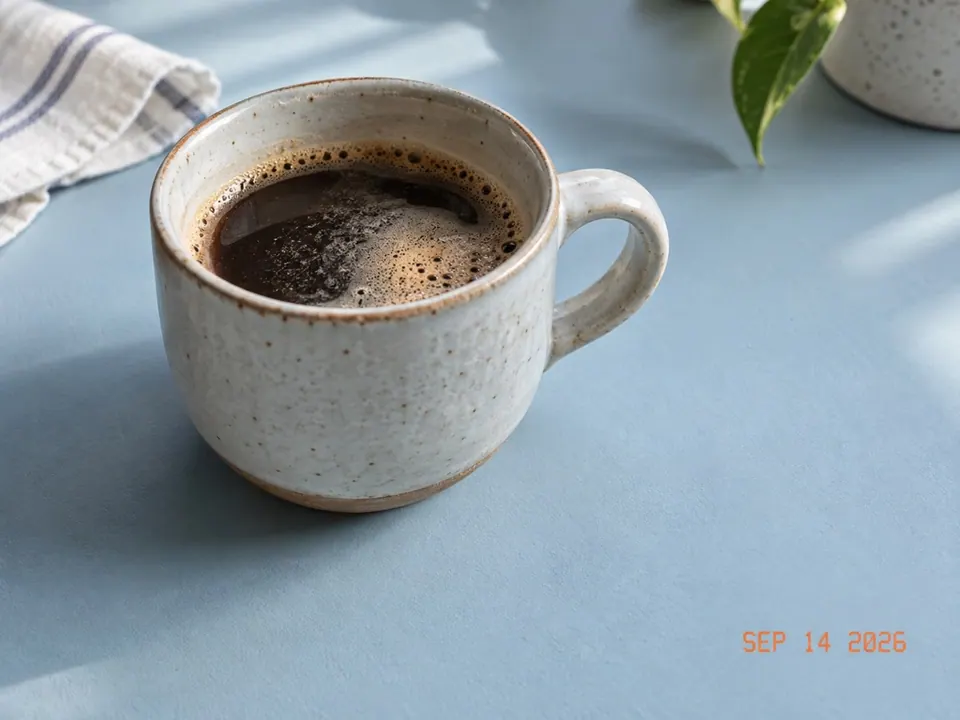
Before
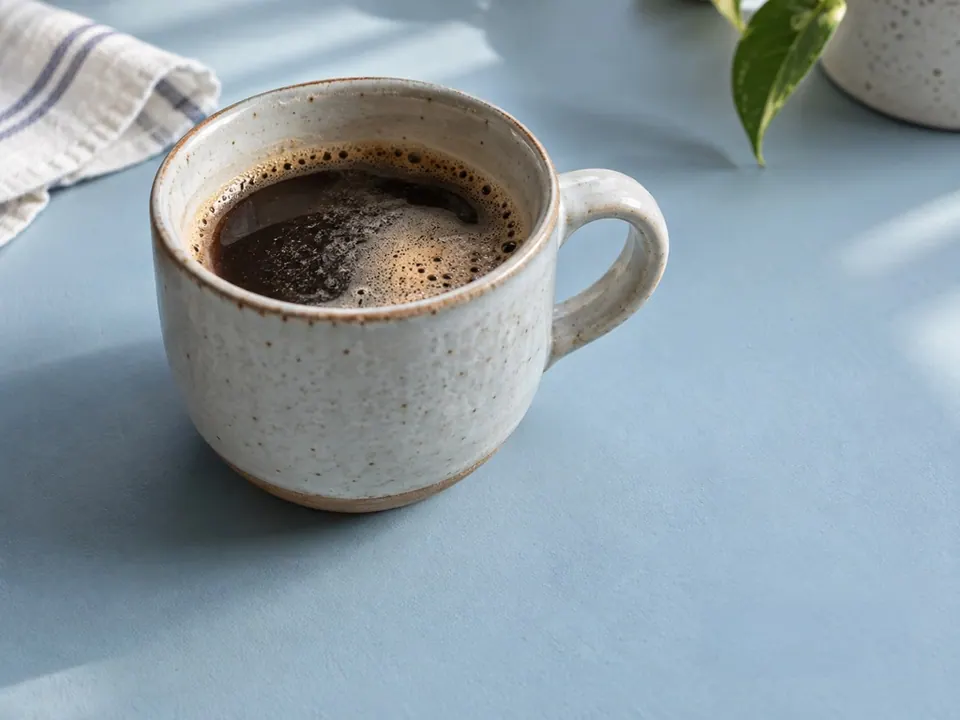
After
Remove a date stamp
The lettering is removed and the tabletop is filled to match its surroundings. Use Remove Text for date stamps, captions, signs, or labels you are allowed to edit.
Before
After
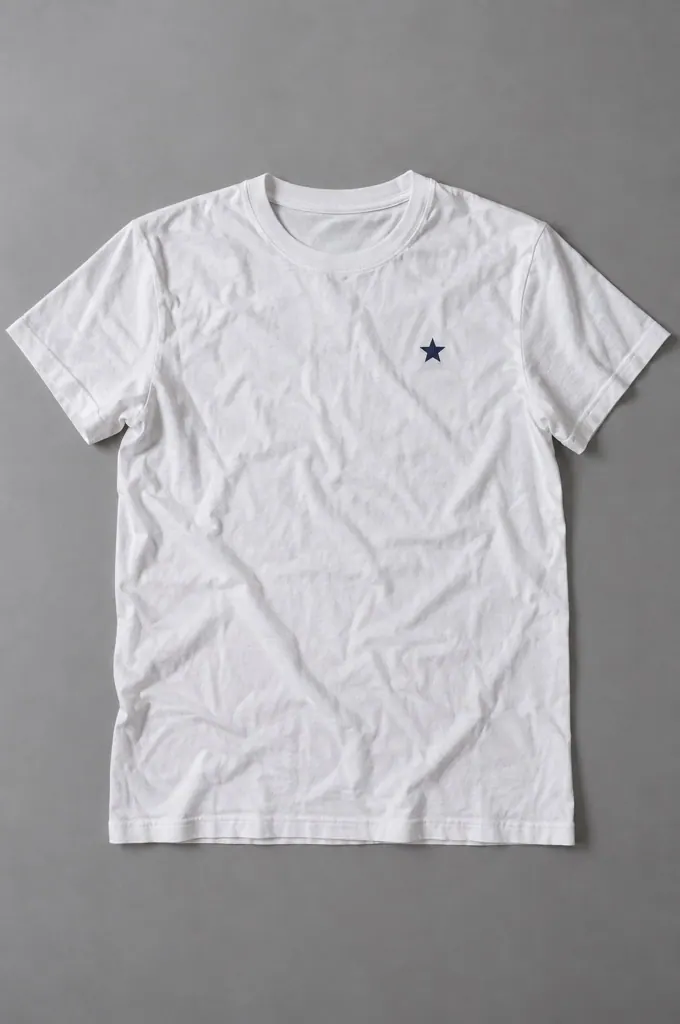
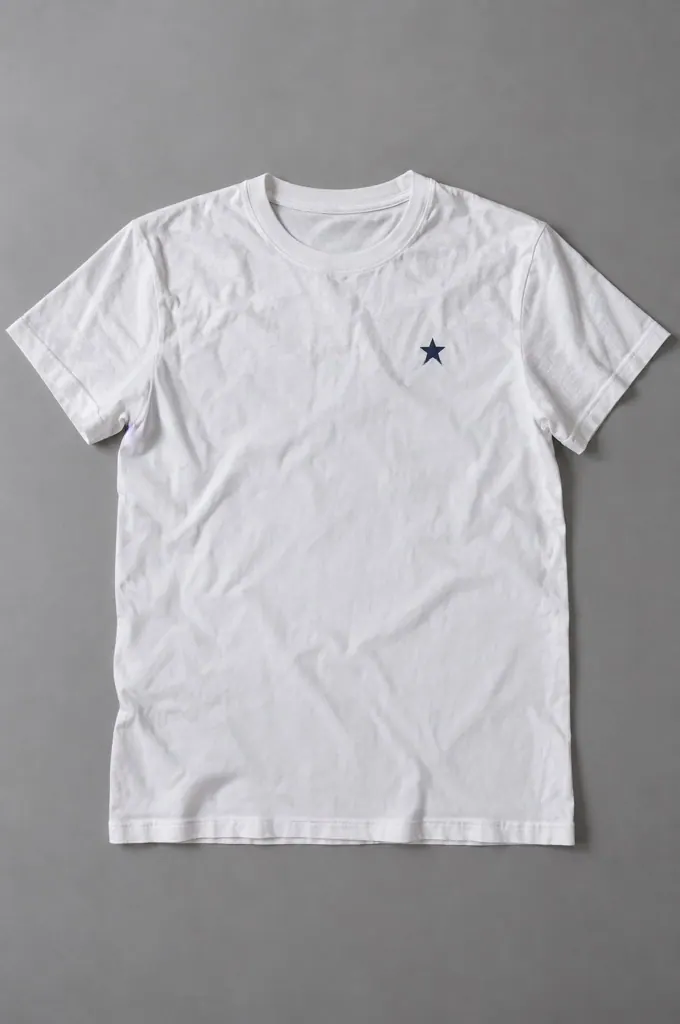
Soften a fabric crease
Reduce a temporary crease in plain fabric. Keep prints, seams, and garment edges out of the selection.
Before
After
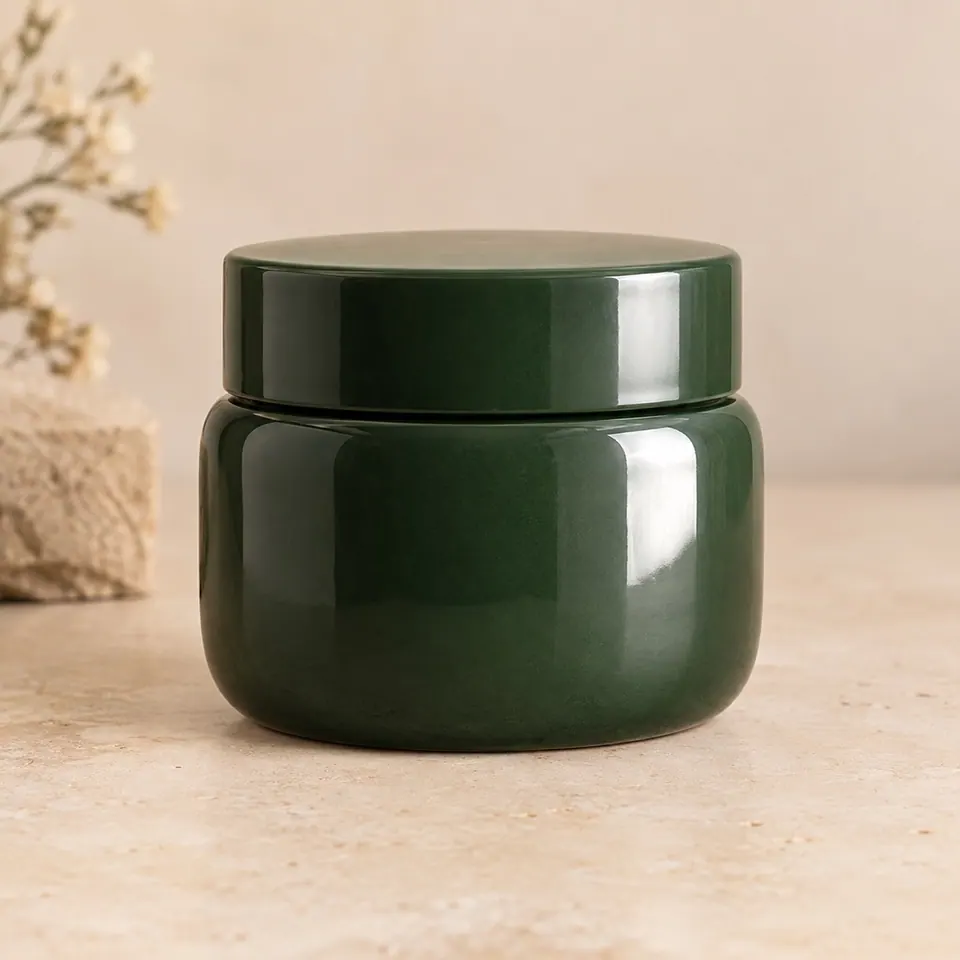
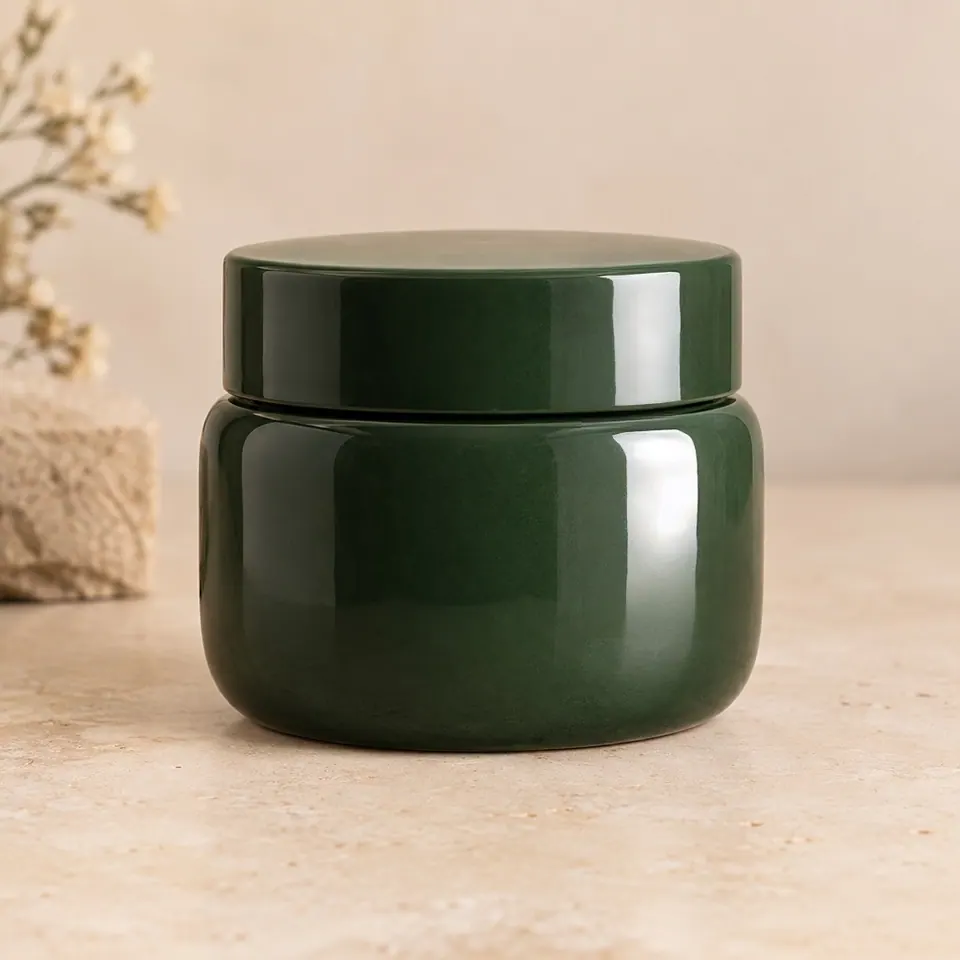
Reduce a product hotspot
Make one distracting highlight less harsh. Filled detail is an estimate, not a recovery of what the glare concealed.
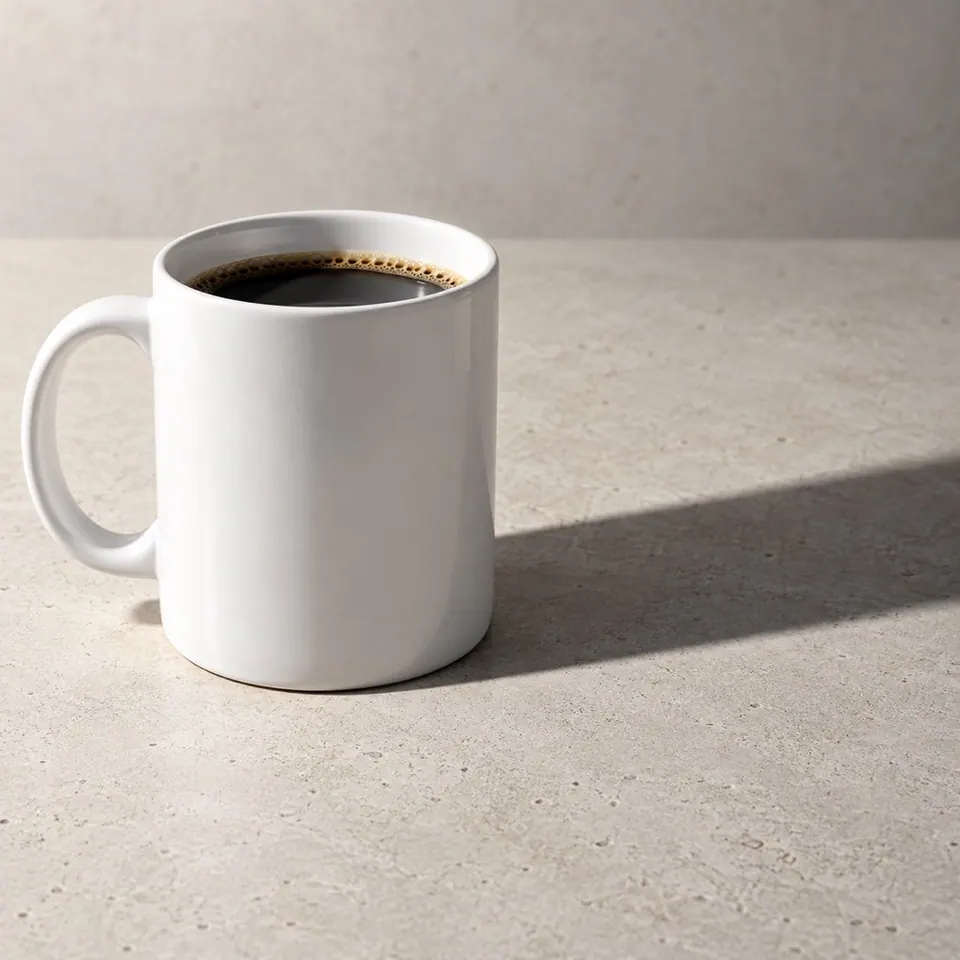
Before
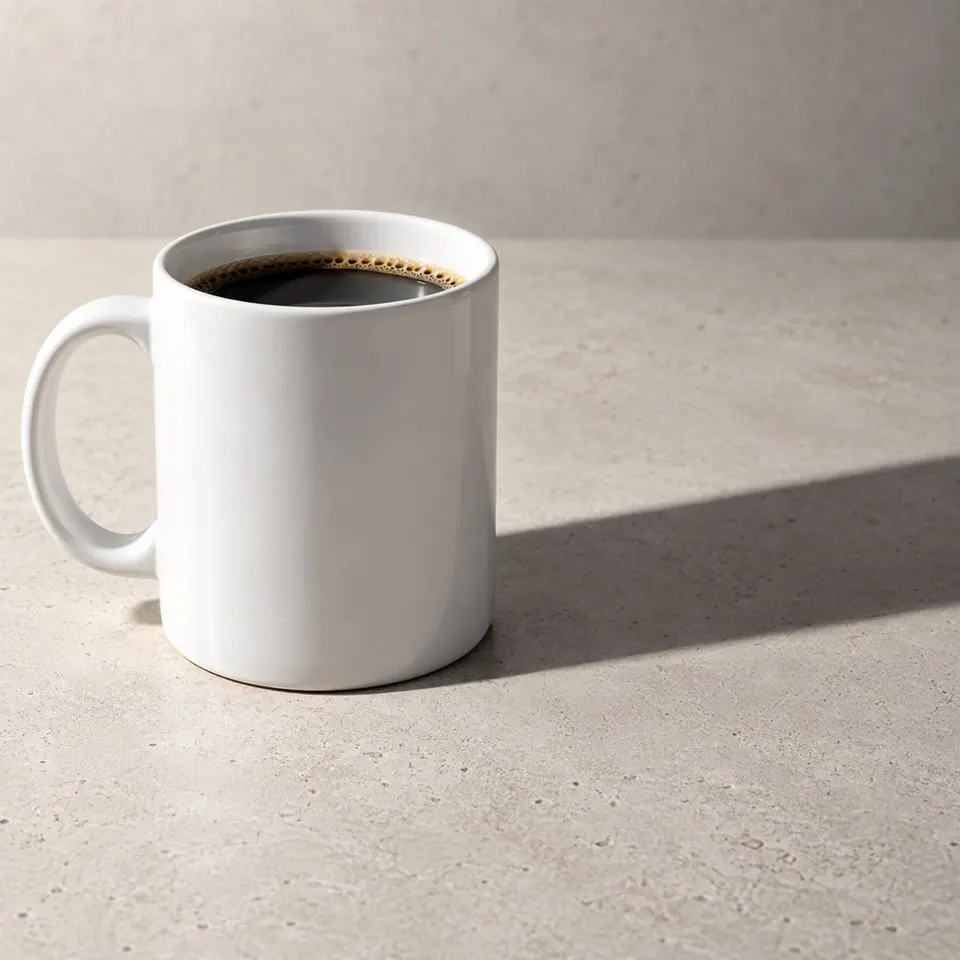
After
Reduce a cast shadow
Lighten a selected part of a shadow on a continuous surface. Keep the object's contact shadow and light direction believable.
Prepare an asset
Keep the ink. Leave the paper behind.
Signature extraction creates a transparent asset rather than filling in a photo. Remove light paper around dark or blue ink, then check faint strokes before saving the PNG.
Extract a signature ↑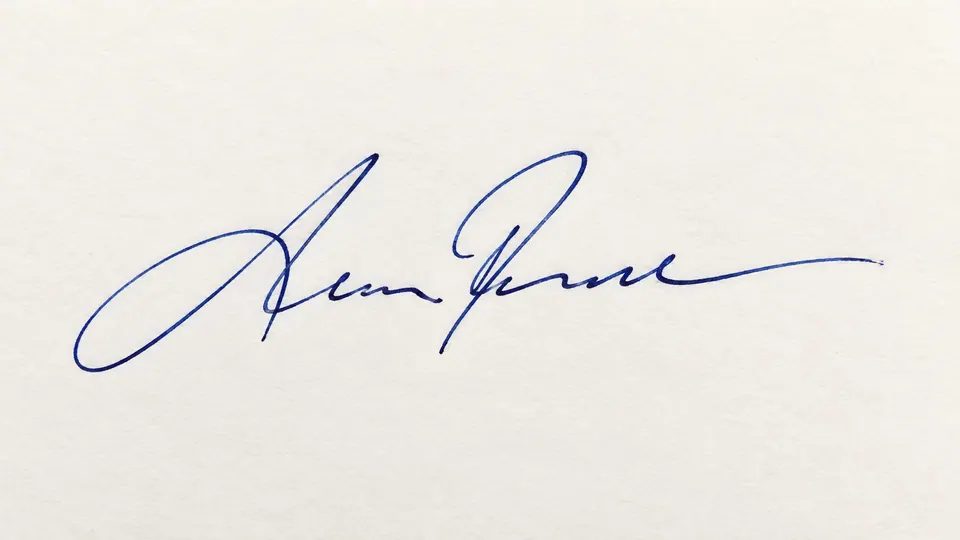
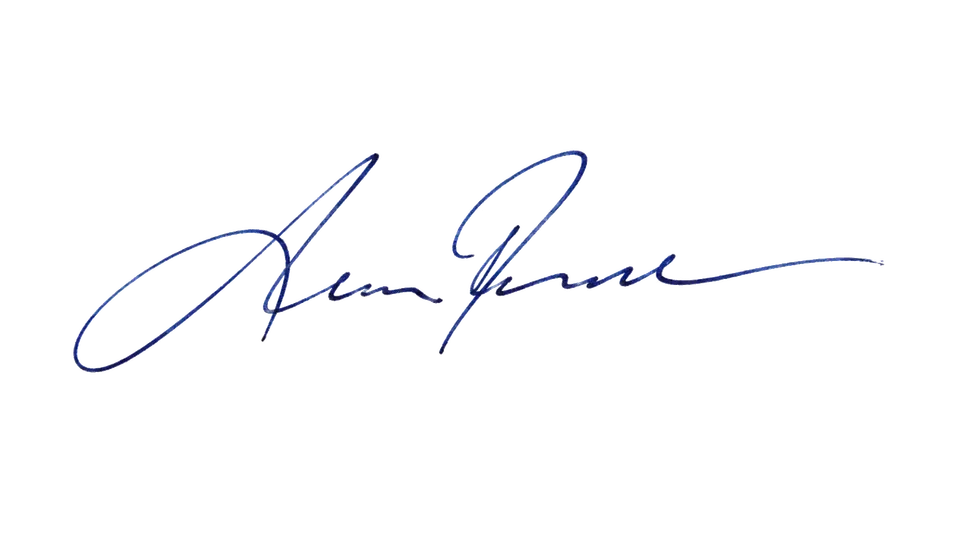
Choosing the right cleanup
What does AI image cleanup remove?
Start here to brush over an unwanted object or small distraction and fill the selected area with a continuation of the surrounding scene. Small clutter, a stray item, or a date stamp are useful starting points. Person detection, text-specific controls, and limited fabric, glare, or shadow fixes are available in the specialist tools above.
Is image cleanup the same as object removal?
Object removal is the main task on this page: select what should disappear and keep the photo around it. If you would rather describe the object in words, Remove Object opens an instruction-based editor. That editor can change other parts of the image, so compare the whole result.
Can I remove a person from a photo?
Yes. You can paint over the person here, or open Remove Person to start with detected person boxes and refine the selection. Cover the complete person and any belongings or shadows that should disappear. Overlapping people and large hidden areas need closer review.
Can I remove text without changing the background?
The selected text area must be rebuilt, so the texture behind those letters is generated rather than recovered. Pixels outside the selected area stay from the original photo. Remove Text provides separate date-stamp, caption, sign, and label choices. Keep any nearby lettering you need outside the selection.
How is Image Cleanup different from Background Remover?
Image Cleanup keeps the scene and fills a small selected area. Background Remover keeps the subject and turns the surrounding scene transparent. Use background removal when you need a cutout, a reusable PNG, or a new product-image background.
Will the rest of my photo stay unchanged?
In the brush-based cleanup here, the final PNG keeps the original image dimensions and uses your uploaded photo outside the selected area, including a soft blend around its edge. The repaired area may have less detail than the original. Continuing in Photo Editor uses a different editing method and can affect the wider image.
Which areas are hardest to clean up?
Repeated architecture, printed patterns, faces, hands, reflections, and large obstructions are difficult because the missing detail must be estimated. Start with a tight selection and one small area. If the result invents an edge or looks smooth or blurry, refine the selection or retry; a clean thumbnail is not enough to judge it.
Should I use Photo Editor or Image Cleanup?
Use Image Cleanup to remove something while keeping the rest of the photo. Use Photo Editor when you need to add an element, change colors or lighting, replace a scene, or describe a broader adjustment. Background and signature extraction are separate choices when the result needs transparency rather than repaired scenery.