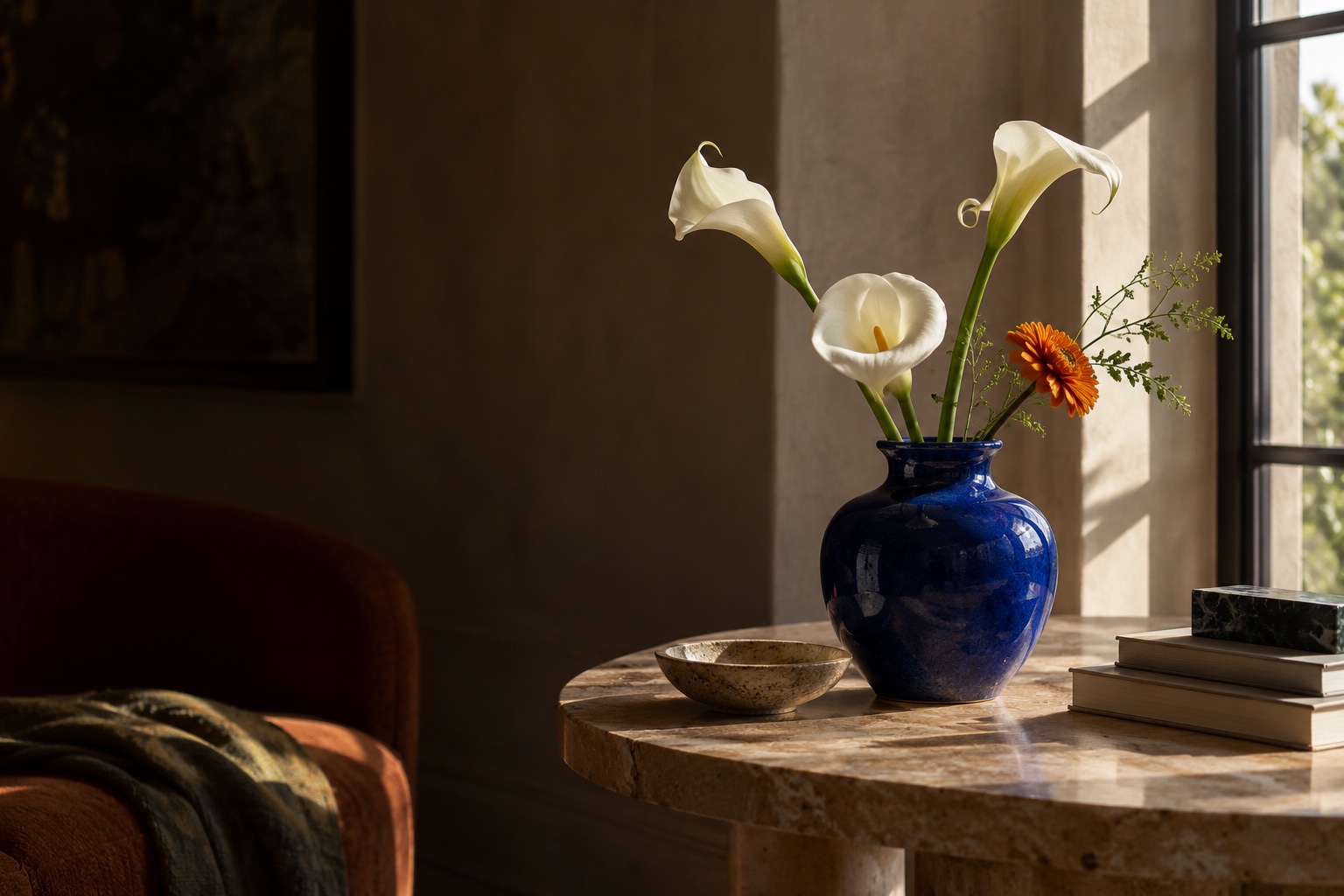
 Before
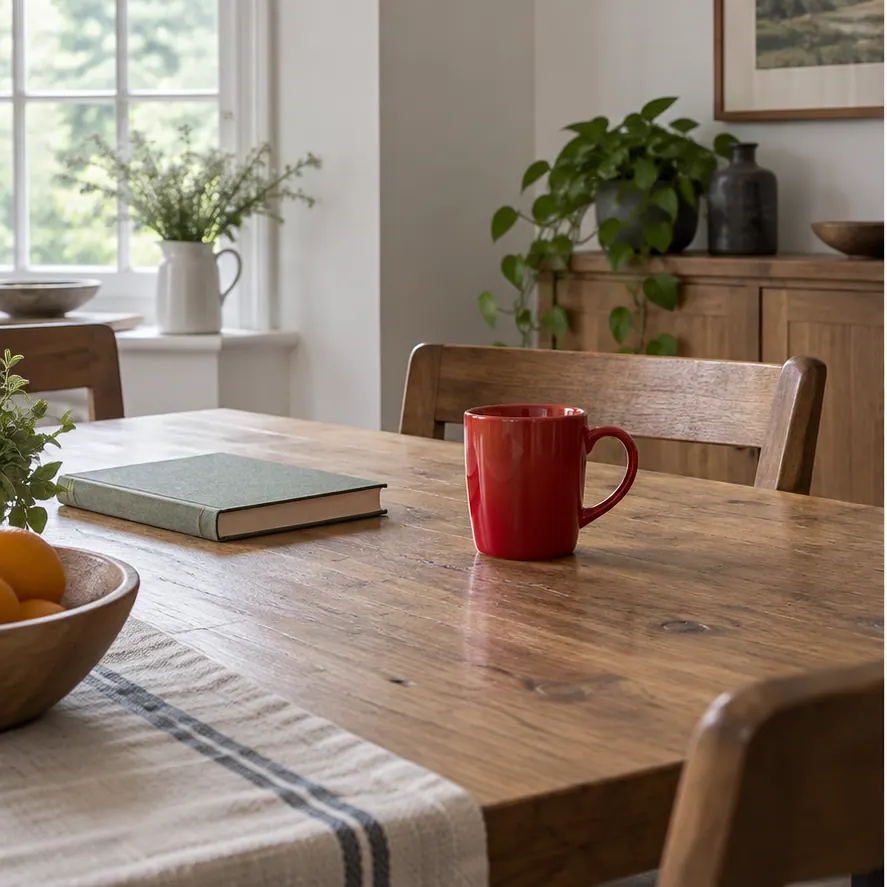
 After
After01
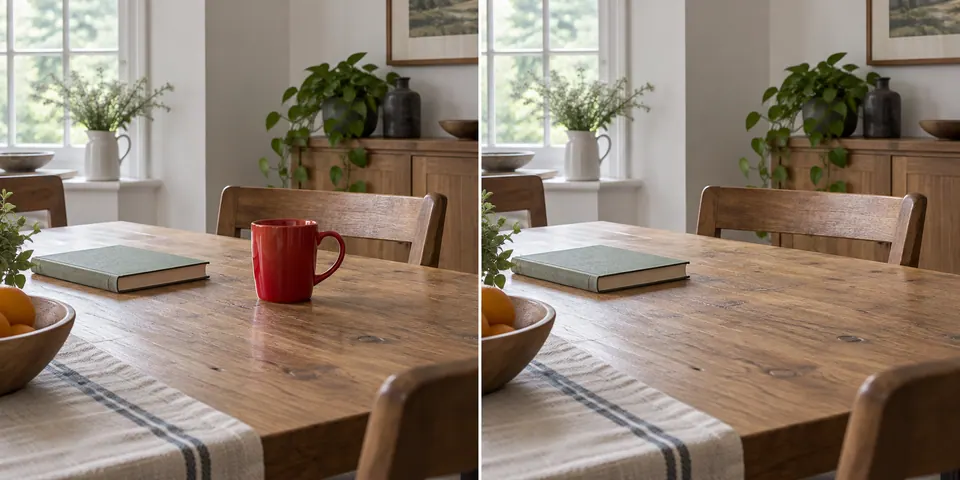
The cup disappears; the table, book, plants, and light stay familiar.
AI Photo Editing · Edit with Text
Upload a photo, choose an edit, and tell AI what to change. Remove an object, replace a background, adjust lighting, or retouch a portrait—then compare the result with your original.
Prepare your photo and instructions here. Sign in to apply edits with free daily credits.
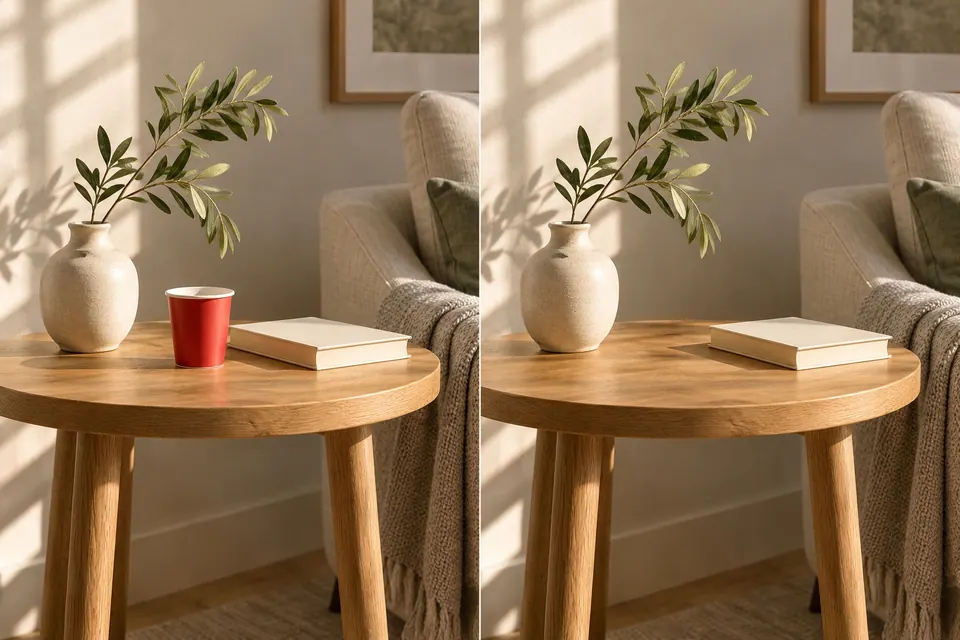
Photo preview
BeforeAfterOne photo. One clear change.
Before & after
Remove a distraction, find a new setting, shape the light, or revive a memory. Each pair starts with a photo and one clear change.
BeforeAfterThe cup disappears; the table, book, plants, and light stay familiar.
 Before
 After
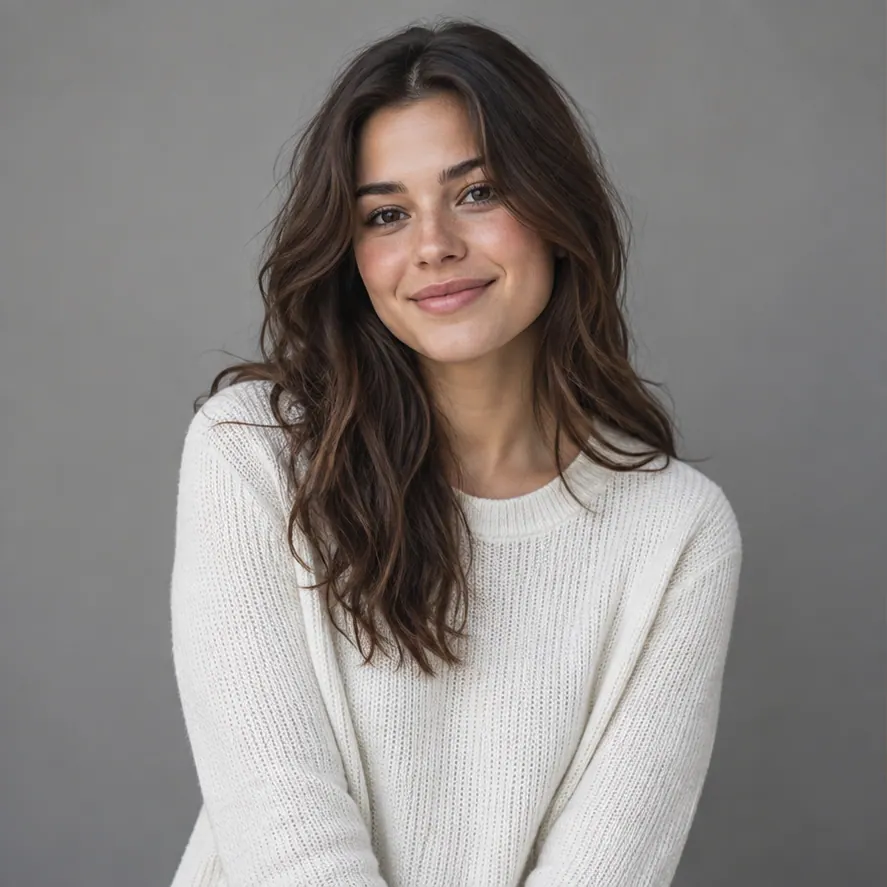
AfterA gray studio backdrop becomes a sunset beach while the portrait stays in place.
 Before
 After
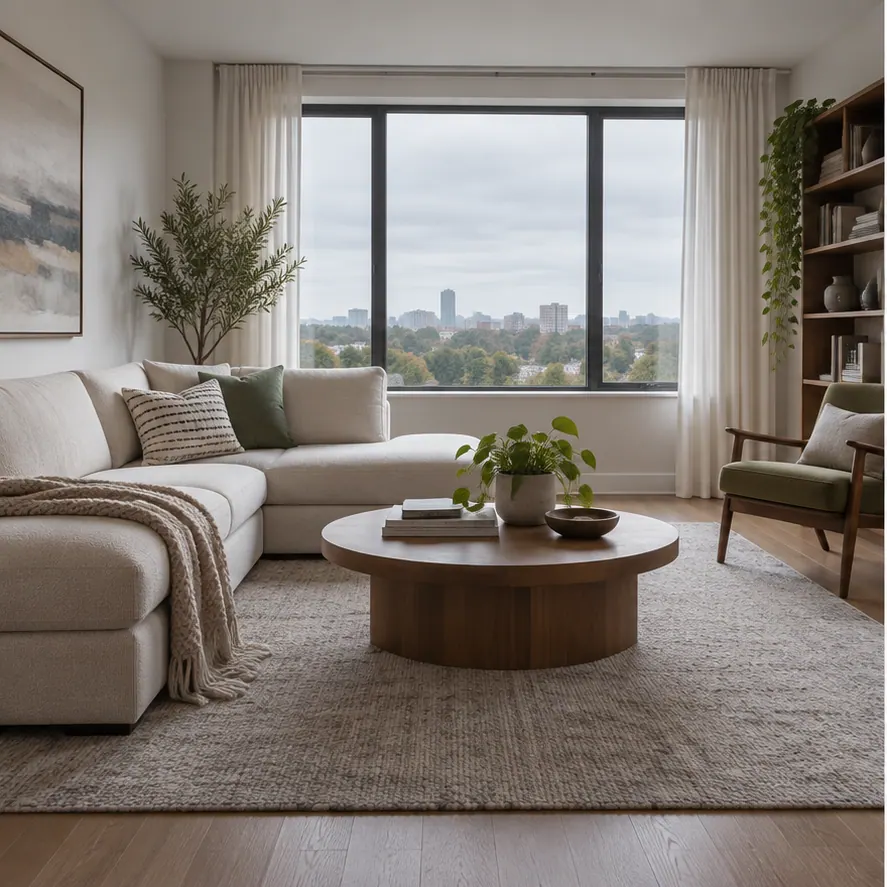
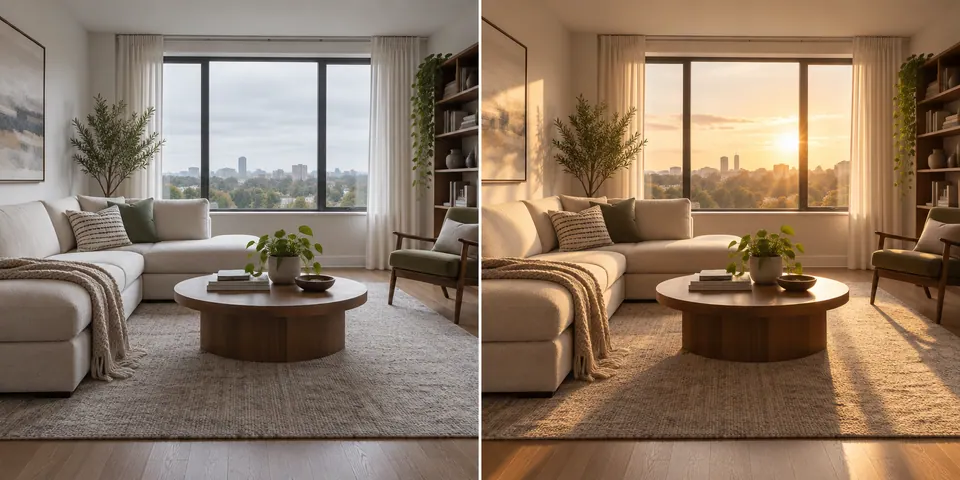
AfterWarm window light changes the mood without moving the furniture.
 Before
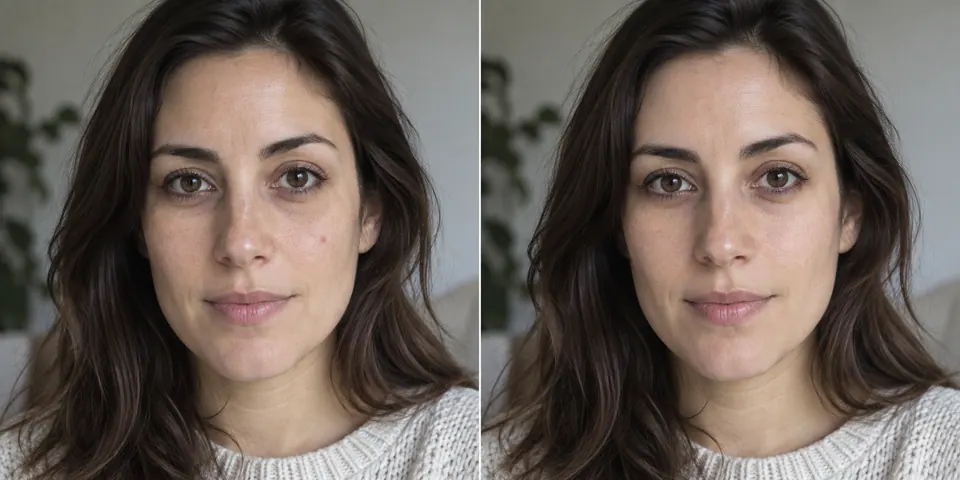 After
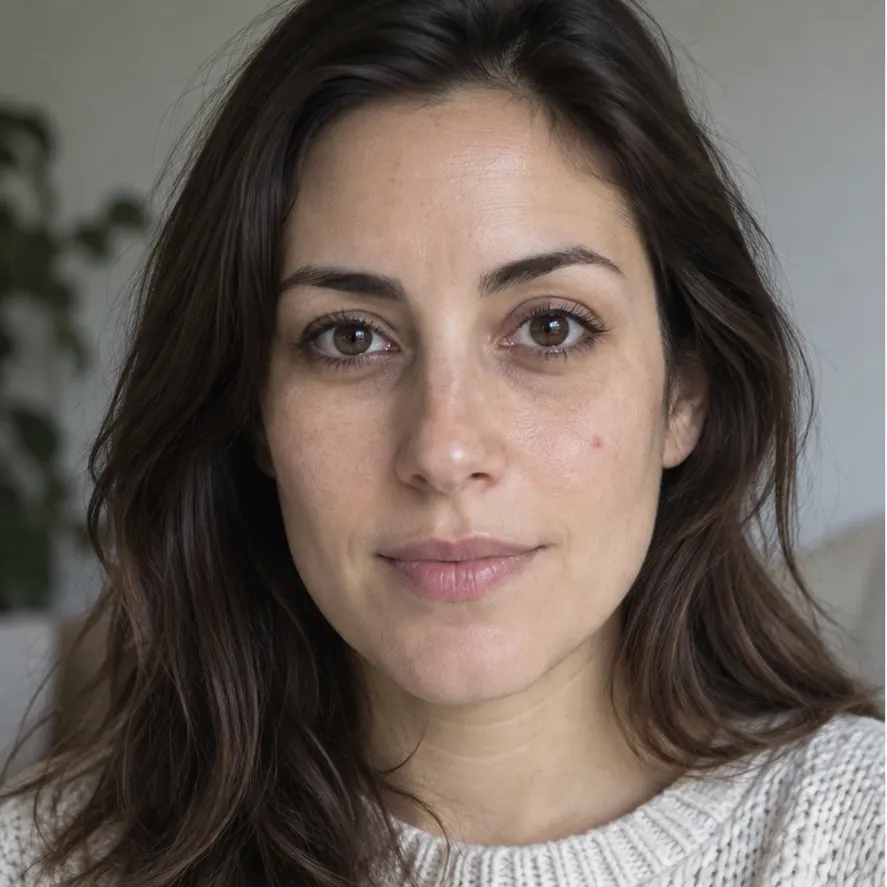
AfterUnder-eye shadows and a small blemish soften while natural skin texture remains.
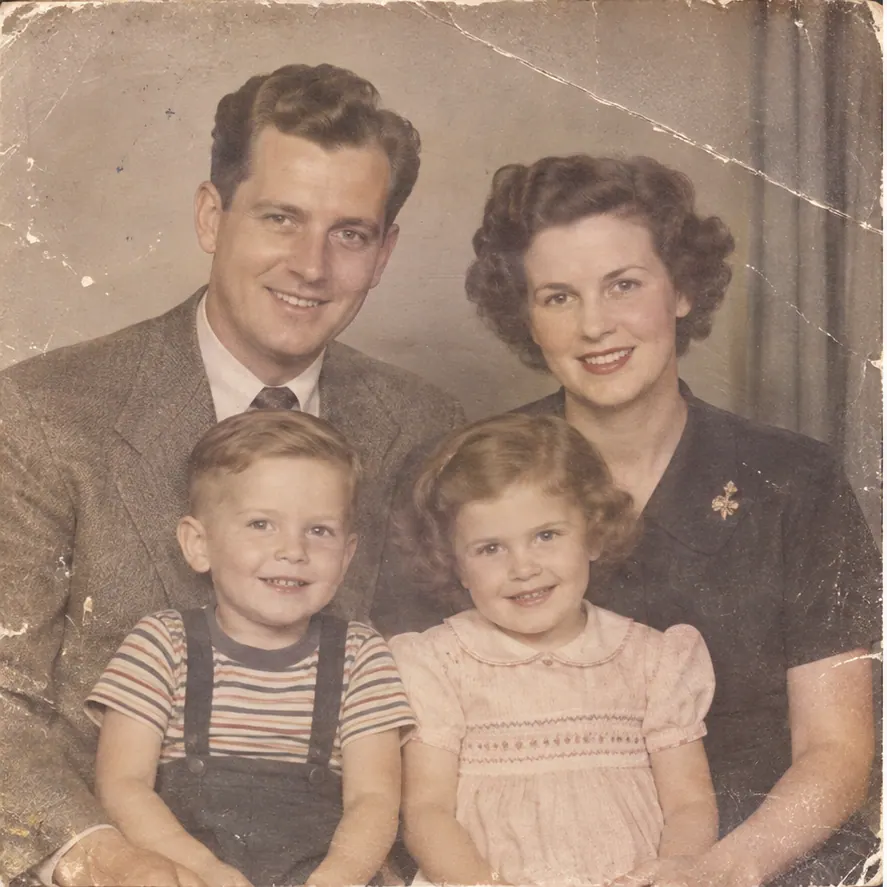 Before
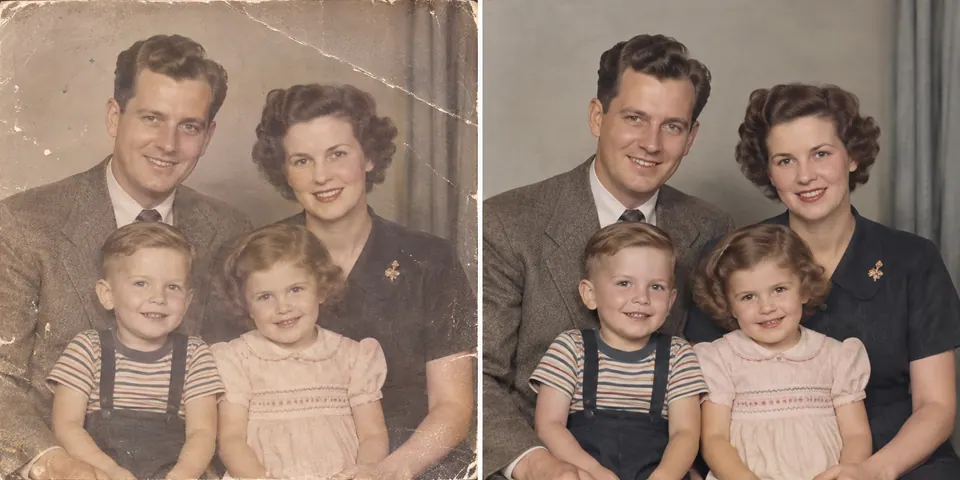 After
AfterScratches and fading recede; the faces and period details stay familiar.
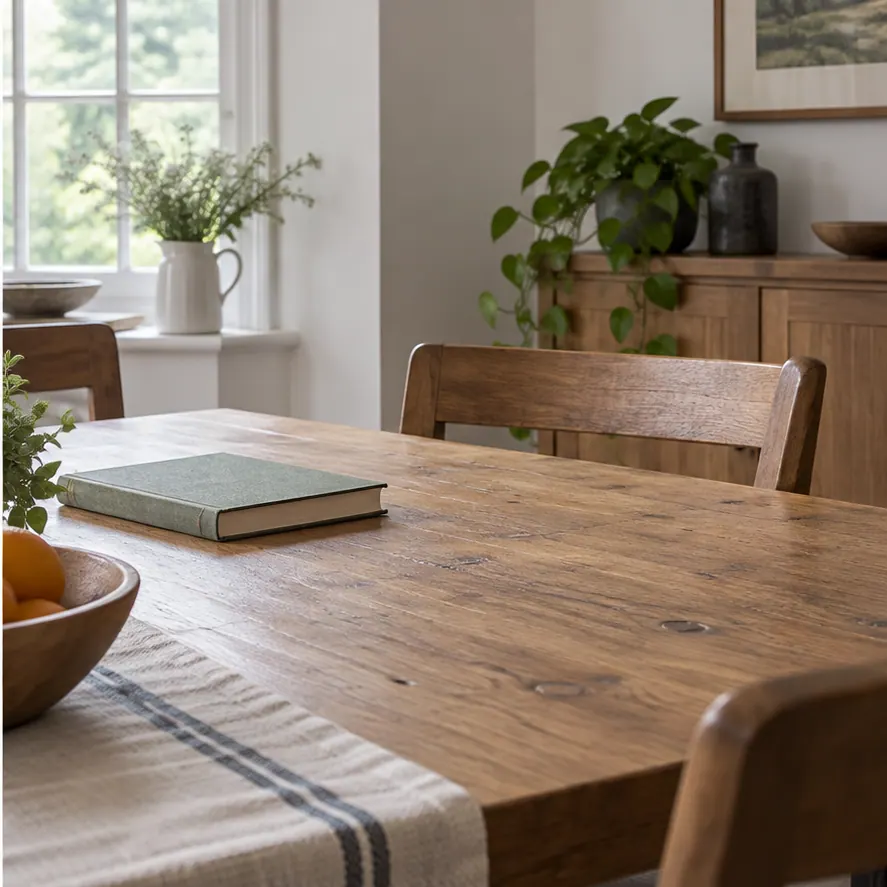 Before
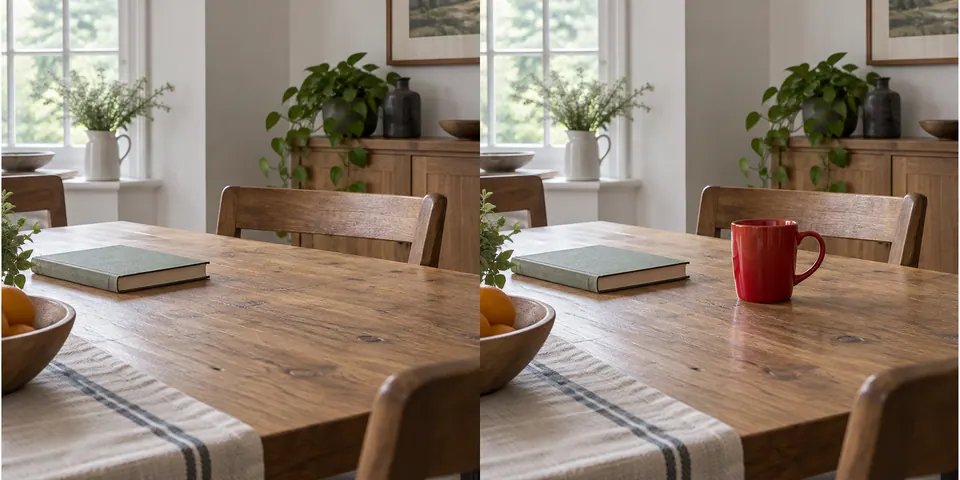 After
AfterA red ceramic cup joins the scene beside the book.
How it works
Upload a JPG, PNG, or WebP photo, or choose an image from your library.
Select an area for object removal, or choose another edit and describe the change.
Compare with the source, retry, use a previous version, continue editing, or download.
Edit control
For object removal, brush or draw a rectangle over the target. The selection is sent as a real mask and the result is composited with the source outside it. Other edits use instructions and can affect nearby details.
Select an area to remove ↑Remove an unwanted object
Generated details inside the selected area may be imperfect. Check edges, texture, text, and nearby objects.
CHOOSE YOUR NEXT MOVE
Start from a prompt, transform the whole scene, or isolate a subject. Each tool picks up where the last one leaves off.
PHOTO EDITING, EXPLAINED
A few practical answers about focused edits, keeping important details, and choosing the right workflow.
Questions about files, limits, or saved images? Read the FAQYou can remove an object, replace a background, retouch a portrait, adjust lighting, repair a photo, or add an object. Start with one clear change, then review the result beside your original.
For object removal, you can brush or draw a rectangle over the area to remove. The editor uses that selection as a mask and keeps the source pixels outside it. Check edges and fine textures inside the selected area before downloading.
Name the details in “What must stay the same?” and describe the change as narrowly as you can. Edits other than masked object removal follow written instructions and may affect nearby details, so compare the result with the original.
You can choose an image and prepare your instructions before signing in. Sign in to apply the edit; the prepared image and instruction are carried into that step.
JPG, PNG, and WebP files up to 10 MB are supported. You can also select an eligible image from your library when signed in.
Yes. Compare the result with your original, return to an earlier version during the session, or use the result as the source for another edit. Download the version you want to keep.
This editor can replace a background as part of a broader photo edit. If you need the subject isolated on transparency, use the AI Background Remover instead.
Use Image to Image when you want to restyle a photo, reimagine a room, or make a new version of the full image. Photo Editor is better suited to a focused change.
Create one from a text prompt in the AI Image Generator, then send the result here for a focused edit.
MAKE YOUR NEXT EDIT
Choose one detail to change, then review the result beside your original.
Choose a photo