BeforeAfter
01
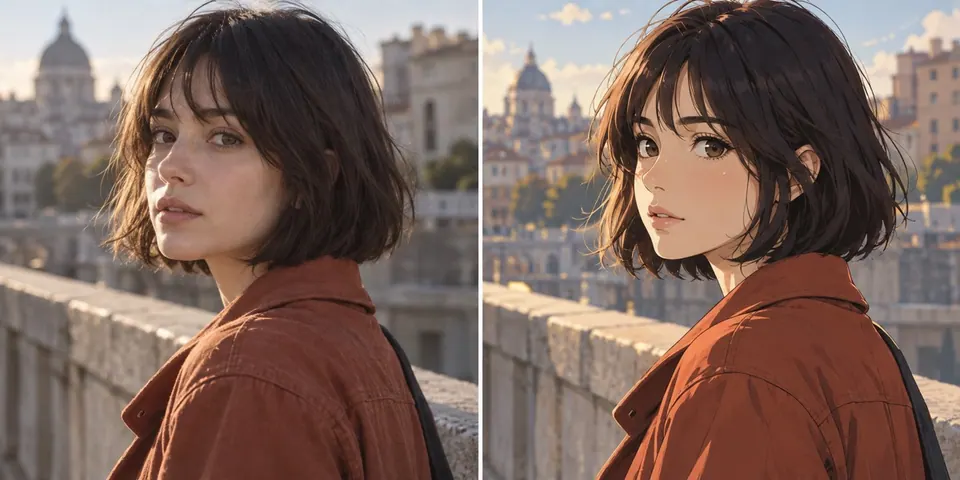
The same person and pose take on illustrated lines and softer color.
Image to Image · AI Image Editor
Upload an image and use a text prompt to transform it. Change the style, reimagine the scene, or create a new version while telling the AI what to keep.
Prepare your image and prompt here. Sign in to generate with free daily credits.
Have a source image but not the words for it? Use Image to Prompt →
Upload a photo, then tell the AI what should change.
Preview
 Before
 After
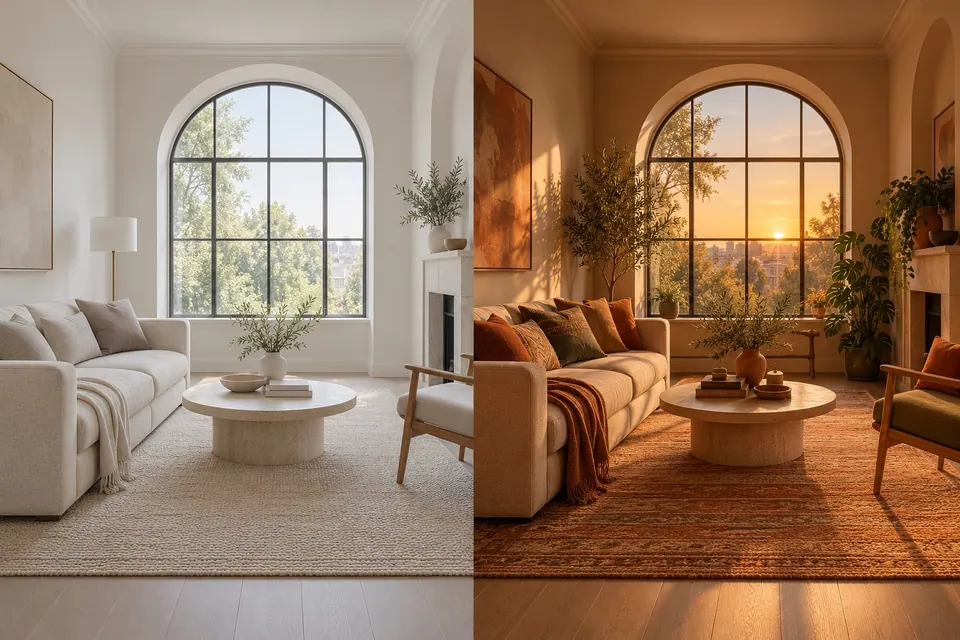
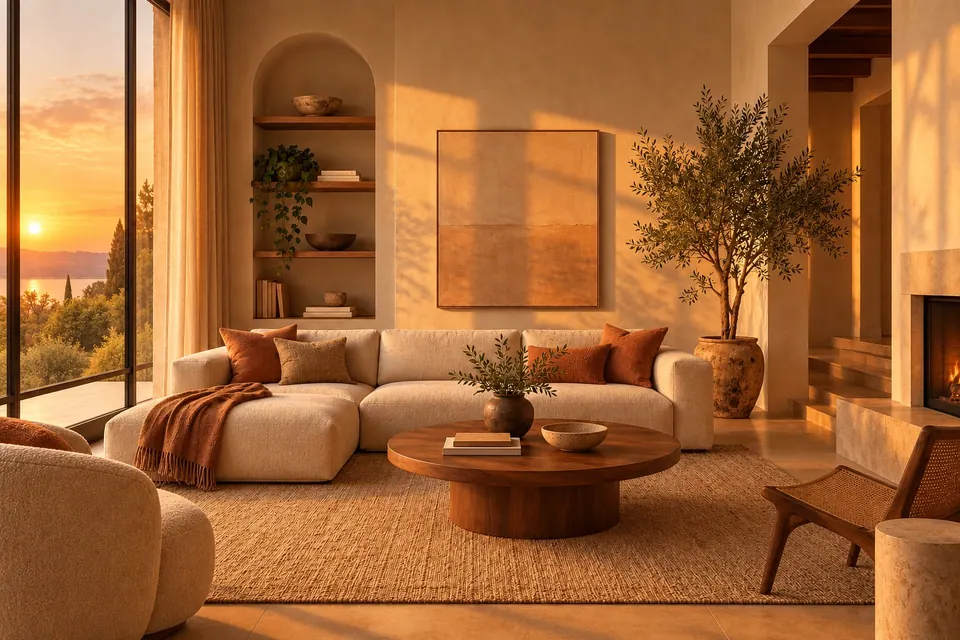
AfterSame room. New light.
Before → After
A new style, a different time of day, or a whole new room. The original image gives every transformation a place to begin.
The same person and pose take on illustrated lines and softer color.
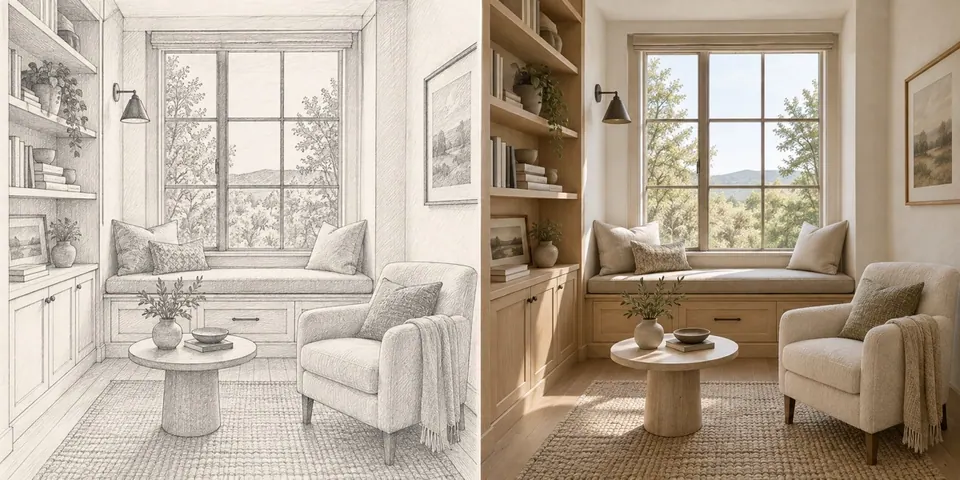
Pencil lines turn into materials and light while the room’s layout stays familiar.
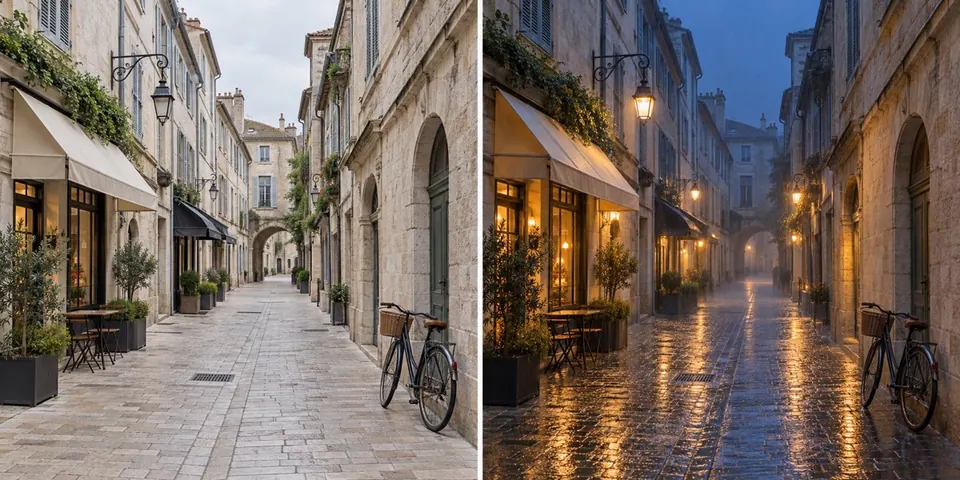
Daylight gives way to rain, reflections, and glowing windows on the same street.
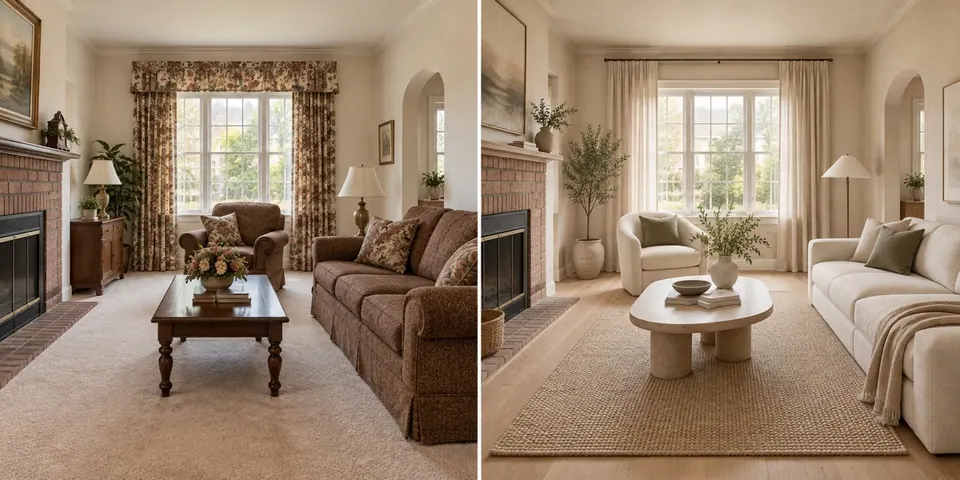
Furniture, color, and texture change while the windows and layout remain.
Change → Keep
Change
Turn the portrait into anime.
Keep
The same pose, expression, and hairstyle.
Change
Make the street a rainy neon night.
Keep
The same buildings and viewpoint.
Change
Replace the materials and furniture.
Keep
The same layout and windows.
Product workflow · creative restaging
This is the restaging step for exploring a new set, lighting treatment, crop, or overall interpretation from a product source image.
Do not use it when labels, exact geometry, or the original pixels must remain unchanged. Choose Photo Editor for one focused replacement, or Product Background Remover for deterministic canvas and spacing.
AFTER THE TRANSFORMATION
Create a source, make a focused edit, or explore examples to take your image further.
TRANSFORMATION, EXPLAINED
What your source image controls, how to guide a transformation, and when to use a more focused tool.
Questions about files, limits, or saved images? Read the FAQImage to Image starts with a photo or other source image and uses your instruction to make a new version. If you want to create an image from words alone, start with the AI Image Generator.
Upload a JPG, PNG, or WebP image up to 10 MB. You can also choose an eligible image from your library when signed in.
Try a new art style, different lighting, a changed setting, or a broader redesign. The source gives the transformation a starting point; the instruction says where to take it. See room transformation examples for concrete before-and-after directions.
Name the details that matter in your instruction, such as the person, camera angle, or room layout. Keep the requested change focused. The result is generated anew, so inspect important details before using it.
The source image guides the subject and composition, but the result is a newly generated image. A smaller lighting or style change may stay closer to the source than a complete scene change; exact details are not guaranteed.
You can upload an image and prepare the instruction first. Sign in to run the transformation with available daily credits.
Yes. Use Transform again to make the result your new source, adjust the instruction, and create another version. You can also download the result or return to a recent transformation.
Use the AI Photo Editor for a focused edit such as removing an object or replacing a background. Image to Image is for a broader reinterpretation of the source.
Try Image to Prompt for a draft description of the image, then edit the words to say what you want to change and what should stay.
MAKE ANOTHER VERSION
Upload a source, describe what changes, and keep what matters in view.
Transform an image